
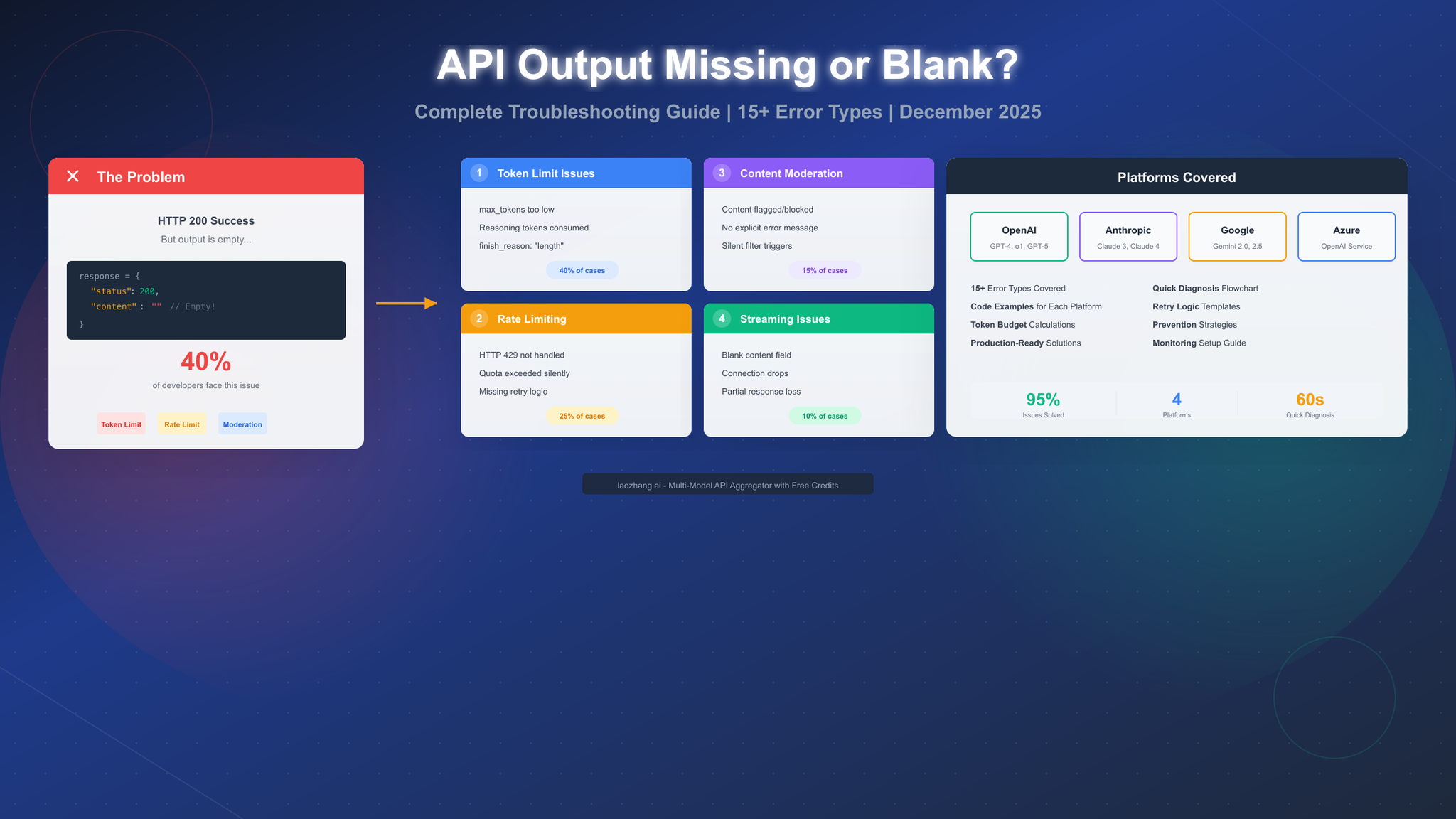
Shopify merchants launching personalized campaigns—such as a “Disney filter” portrait generator for custom merchandise—face immediate drop-offs when their gpt image 2 api integration experiences latencies or fails silently. If a customer uploads their photo on a product page and the resulting stylized avatar takes 45 seconds to render, or fails with a generic 500 error, the cart is abandoned. The bottleneck is rarely the creative prompt itself; it is how backend engineers handle the asynchronous API lifecycle under peak traffic.
By implementing the gpt image 2 api through a robust integration layer, developers can deliver high-fidelity stylized portraits directly to Shopify collection cards or checkout flows. However, moving from a basic script to a production-grade visual pipeline requires a deep understanding of error states, payload structures, and fallback mechanisms. In this diagnostic guide, we will analyze why these API integrations break, trace error codes to their root causes, and establish a resilient architecture to keep your Shopify store running smoothly.
Identifying API Integration Failures and Timeout Symptoms
When a Shopify application attempts to render a custom Disney filter portrait using the gpt image 2 api, failure manifests in several distinct ways. The most common symptom is the hanging request. Because generating high-resolution, stylized images is computationally intensive, a synchronous HTTP request will often exceed the 30-second gateway timeout limit enforced by platforms like Shopify or Heroku.
Another symptom is the broken image placeholder on the frontend. When the backend fails to process the image generation task, the gpt image 2 api fails to return a valid URL, resulting in a fractured user interface. In headless Shopify setups, this often triggers uncaught JavaScript exceptions during the checkout payload serialization.
Let’s look at a typical failure matrix that backend developers face during gpt image 2 api deployment:
| Symptom | Storefront Impact | Backend Indicator |
| Gateway Timeout (504) | Customer sees loading spinner indefinitely | Synchronous connection terminated by server |
| Broken Image Asset | Empty placeholder on cart page or checkout flow | null value in task query response payload |
| Authentication Failure | App dashboard displays configuration error | 401 Unauthorized response from API endpoint |
| Rate Limit Exhaustion | Slow image generation or failed requests | 429 Too Many Requests status code |
Understanding these symptoms is critical for developers using the gpt image 2 api. When a user triggers a Disney filter conversion for a dynamic product page asset, the system must capture these errors gracefully rather than exposing raw stack traces to the shopper.
Root Causes: Rate Limits, Payload Mismatches, and Authentication Errors
To resolve these integration failures, we must trace them back to their root causes. The first common cause is an invalid authentication header. The gpt image 2 api requires a Bearer token passed in the Authorization header. A misplaced character, an expired key, or a configuration sync issue between your staging and production environments on Shopify will immediately result in a 401 Unauthorized response.
Second, payload mismatches frequently occur when developers send unsupported parameters. The gpt image 2 api enforces strict validation rules on image sizes, avoiding background clutter, and matching specific aspect ratios. For example, if you request an arbitrary resolution like 1000×1000 instead of a standard multiple of 16px (such as 1024×1024), the server returns a 400 Bad Request error. Similarly, attempting to pass an invalid image URL in the images array for an image-to-image workflow (like converting a customer’s photo into a cartoon avatar) will trigger a processing failure.
Third, rate limits are a major bottleneck. Under peak shopping events, such as holiday sales, hundreds of concurrent users might request a Disney filter portrait simultaneously via the gpt image 2 api. Without an asynchronous queue, your Shopify backend will exceed the allowed requests per minute (RPM) or tokens per minute (TPM), leading to immediate 429 Too Many Requests status codes.
Developers must also account for billing-related API failures. When using the gpt image 2 api, account credit depletion or unpaid balances will trigger 402 Payment Required or 403 Forbidden errors. To optimize costs, note that defapi-gi2-api models are typically more than 50% cheaper than official pricing, costing $0.000000 input and $0.020000 output. If your automated billing setup fails or your credit limit is reached under high traffic, the API will reject requests immediately. Engineers must monitor credit balances and set up automated alerts to prevent these billing-related disruptions during active campaigns.
Step-by-Step Diagnostic Check for API Payloads and Status Codes
To isolate these issues, developers should follow a structured diagnostic checklist when debugging their gpt image 2 api integration.
- Verify the Request Payload Structure: Ensure the JSON payload sent to the gpt image 2 api endpoint includes the required model and prompt fields. The model must be exactly openai/gpt-image-2.
- Validate Image URLs: If your Shopify app uses a customer-uploaded photo for the Disney filter effect, verify that the image URL is publicly accessible so the gpt image 2 api can fetch it without encountering CORS policies or private AWS S3 bucket permissions.
- Inspect the API Response: A successful task creation returns a 200 OK status code with a unique task_id. If you receive a 400 status code, parse the errors string to identify the invalid parameter.
Before sending the payload to the gpt image 2 api, validate your parameters locally to reduce unnecessary network calls. Here is an example of a diagnostic payload verification check in Node.js:
// Diagnostic payload validation for gpt image 2 api
const validatePayload = (params) => {
if (params.model !== “openai/gpt-image-2”) {
throw new Error(“Invalid model specified”);
}
if (!params.prompt || params.prompt.trim() === “”) {
throw new Error(“Prompt cannot be empty”);
}
if (params.size) {
const [width, height] = params.size.split(‘x’).map(Number);
if (width % 16 !== 0 || height % 16 !== 0) {
throw new Error(“Resolution dimensions must be multiples of 16”);
}
}
return true;
};
- Query the Task Endpoint: Because image generation is asynchronous, you must query /api/task/query?task_id=YOUR_TASK_ID to retrieve the status. Verify whether the status returns in_progress, success, or failed. If the status is failed, check the status_reason.message field for the exact failure reason.
By systematically checking these points, engineers can determine if a failure is due to bad inputs, network timeouts, or upstream rate limits within the gpt image 2 api workflow.
Targeted Remedies: Implementing Webhooks, Retries, and Fallbacks
Once you have diagnosed the issue, you must implement targeted remedies to make your Shopify integration with the gpt image 2 api resilient. Establishing a reliable defapi-gi2-api integration is essential for this resilience. The most critical shift is moving from synchronous polling to an asynchronous, webhook-driven architecture.
Instead of repeatedly polling the /api/task/query endpoint—which wastes server resources and increases network overhead—provide a callback_url in your initial request payload to the gpt image 2 api. When the image generation task completes, the defapi-gi2-api server sends an HTTP POST request containing the final image URL to your webhook handler. This ensures your Shopify backend only processes the asset when it is fully rendered, avoiding gateway timeouts entirely.
To handle rate limits and temporary network glitches, implement an exponential backoff retry mechanism. When your backend encounters a 429 or 500 status code from the gpt image 2 api, it should queue the request and retry after a progressively longer delay (e.g., 1s, 2s, 4s, 8s).
Additionally, always design a fallback experience for the storefront. If the gpt image 2 api fails repeatedly due to upstream issues, the Shopify app should fall back to a high-quality pre-rendered template or notify the customer via email once their customized portrait is ready, rather than blocking the checkout flow.
Verification Signals: Testing Endpoints and Confirming Successful Generation
The final step in securing your visual content pipeline is establishing clear verification signals. Developers should set up automated test suites that simulate production loads and verify the stability of the gpt image 2 api integration.
Start by testing the webhook receiver with a mock payload to ensure your Shopify database updates correctly when the task status changes to success. Next, execute end-to-end integration tests using test API keys to verify that the image sizes generated by the gpt image 2 api match the required aspect ratios for your Shopify theme (such as 1:1 for product cards and 16:9 for homepage banners).
Monitor the consumption metrics returned in the gpt image 2 api query response. The consumed field provides the exact credits used. By tracking this data alongside generation times, you can audit the performance and cost efficiency of the defapi-gi2-api platform.
Confirming these signals guarantees that your gpt image 2 api integration is robust, cost-effective, and ready to deliver seamless Disney filter portrait experiences for your Shopify customers.